


If you have encountered the “Your PHP installation appears to be missing the MySQL extension which is required by WordPress” it is because your WordPress site is not able to properly communicate with the MySQL database.
If you’re wondering whether your database is corrupted or experiencing issues, rest assured it is not. This issue can be caused due to not having the MySQL extension installed, and compatibility issues between the PHP and WordPress versions.
How to Fix the Php Installation Appears to Be Missing the MySQL Extension Which is Required by WordPress
This error happens when there is a misconfiguration on the server level that prevents your website from accessing the MySQL database. This issue can happen if the current server settings are changed or you have done a server migration and not properly configured it. This in turn leads to a failure in loading the website. Let’s explore how we can solve this problem.
Check your PHP version
Having the right PHP version is crucial to avoid compatibility issues with WordPress Core, themes, and plugins. Make sure that you are running a PHP version that is compatible with the current WordPress version that you have installed. If you are installing a new version of WordPress while your server is using a PHP version that is not compatible, this issue will happen.
Now in most cases, the admin dashboard will not be accessible, therefore we need to implement a workaround to check the PHP version. We need to upload a phpinfo.php file to our server. You can do this either via the hosting control panel or through FTP.
- Access your website’s files and folders located in the public_html folder. We are doing it via our hosting control panel.
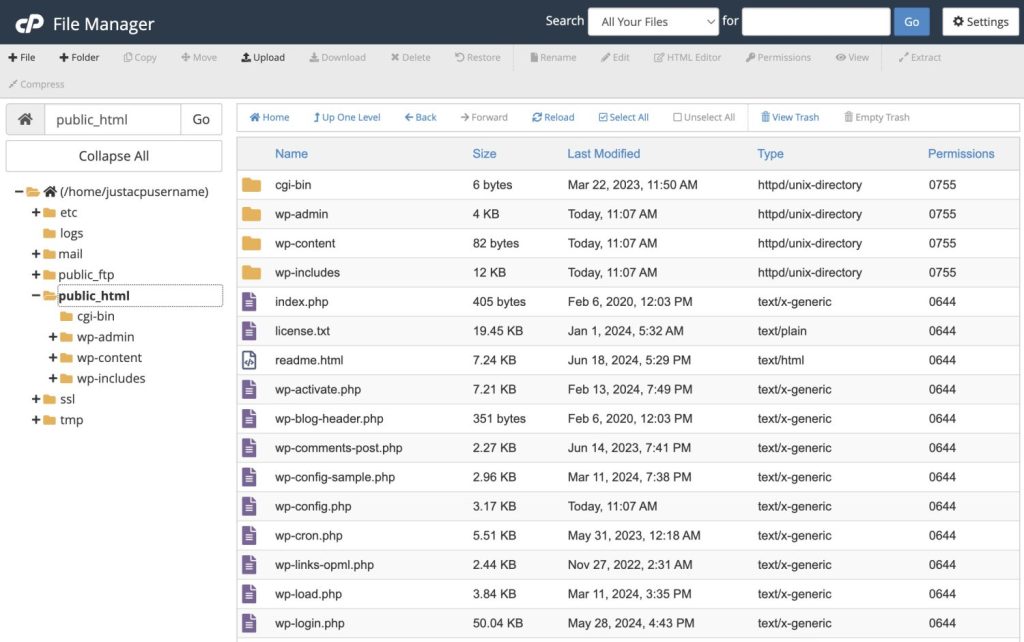
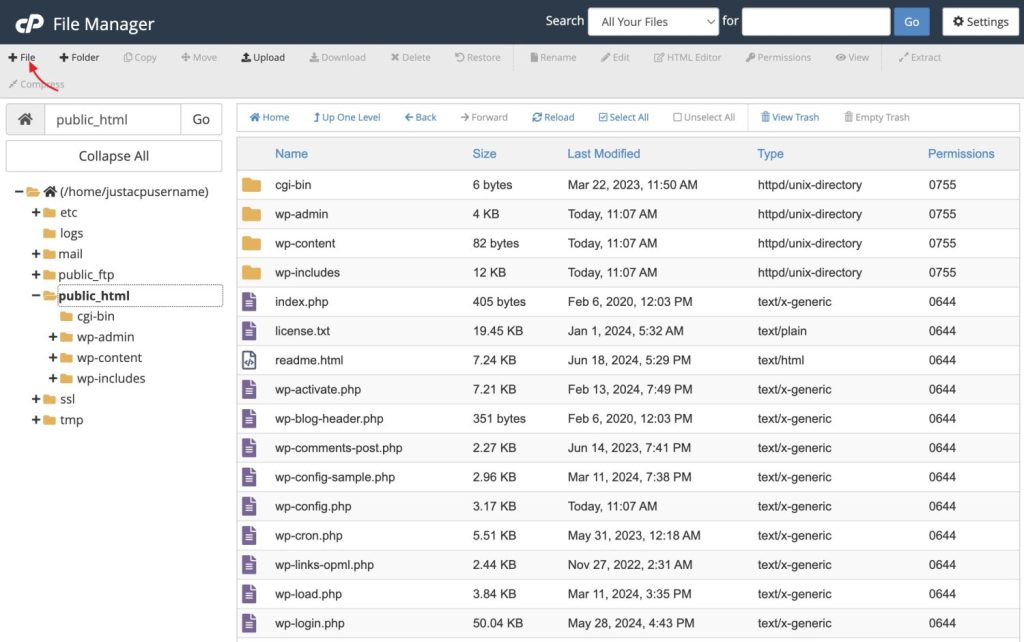
- Now you need to create a new file.
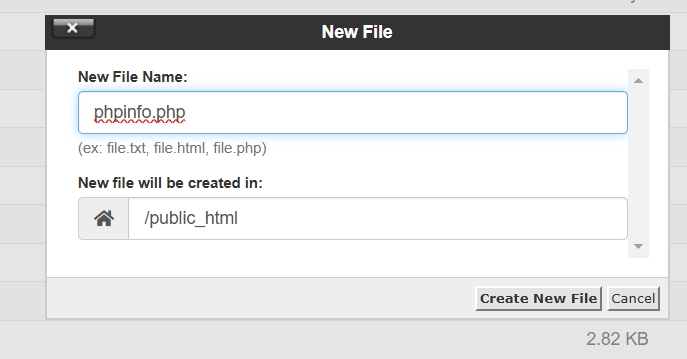
- Name the file as phpinfo.php.
- Now add the following code snippet to the file and save it.
<?php
phpinfo();
?>
- Now load this file on your browser by adding /phpinfo.php after your website’s domain. The URL will be as follows:
yourwebsitedomain/phpinfo.php
- This is how the page will look like.
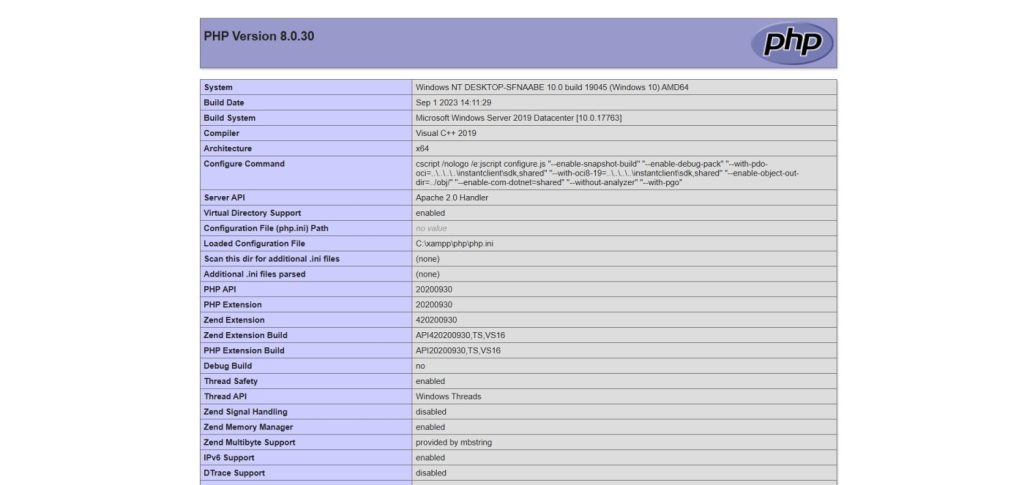
- Now find out your PHP version from the “Core” section.

Now depending on your PHP version, you can resolve the “Your PHP installation appears to be missing the MySQL extension which is required by WordPress” issue in two ways.
- If your PHP version starts with 7.x.x the course of action you need to take is to update your WordPress version to the latest.
- If your PHP version is 5.6 or lower with a supported WordPress version and you have decided not to update, then you need to install the MySQL extension.
We will tackle both scenarios in this guide. It’s always a best practice to update the PHP and WordPress versions to the latest stable ones.
Update WordPress version
Now if the web server is using a PHP version 7 or higher, you need to install/update to the appropriate WordPress version.
For this guide, we will be updating WordPress manually. Before updating WordPress to the latest version make sure to create a full backup of your website.
- Once you have done download the correct version of WordPress based on your PHP version, extract the zip file.
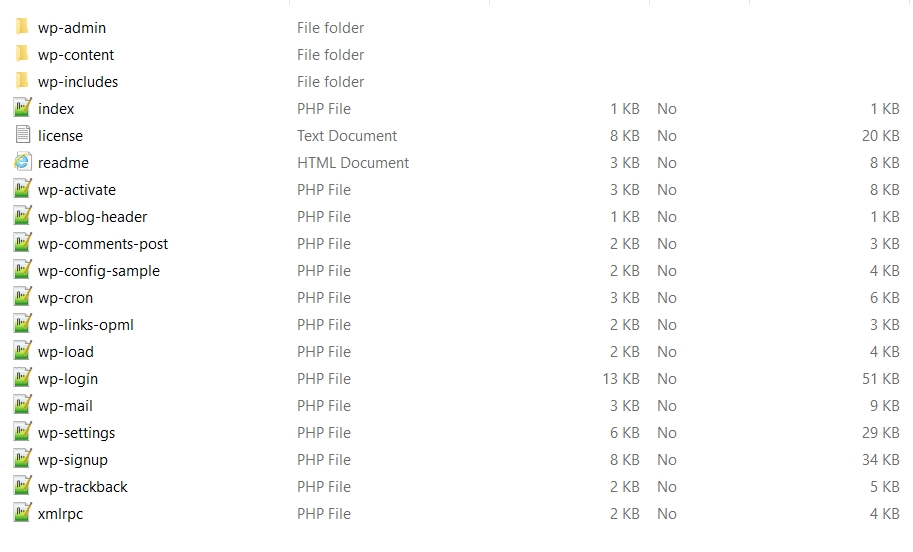
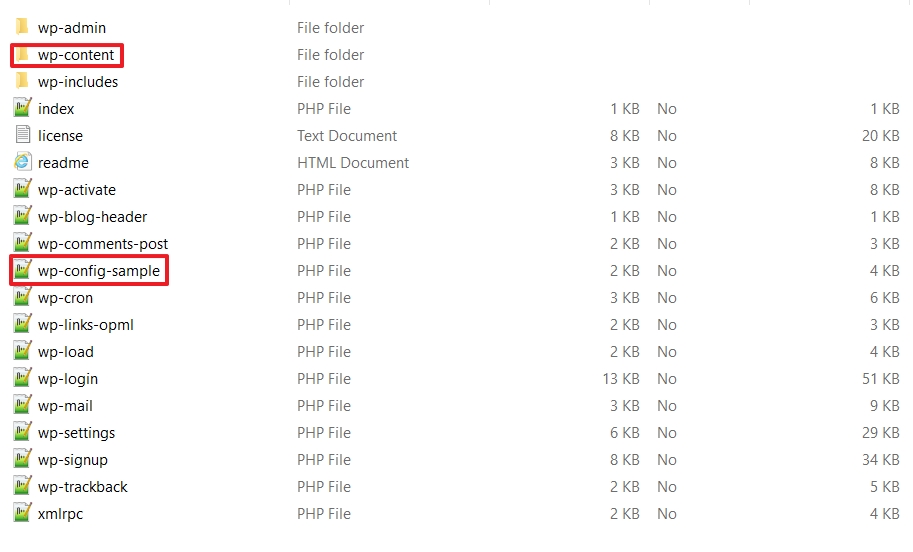
- Now you need to delete the following items before uploading the rest to your server:
- The `wp-config-sample.php` file.
- The wp-config.php file. (If the file appears in the extracted folder delete it)
- The wp-content folder.
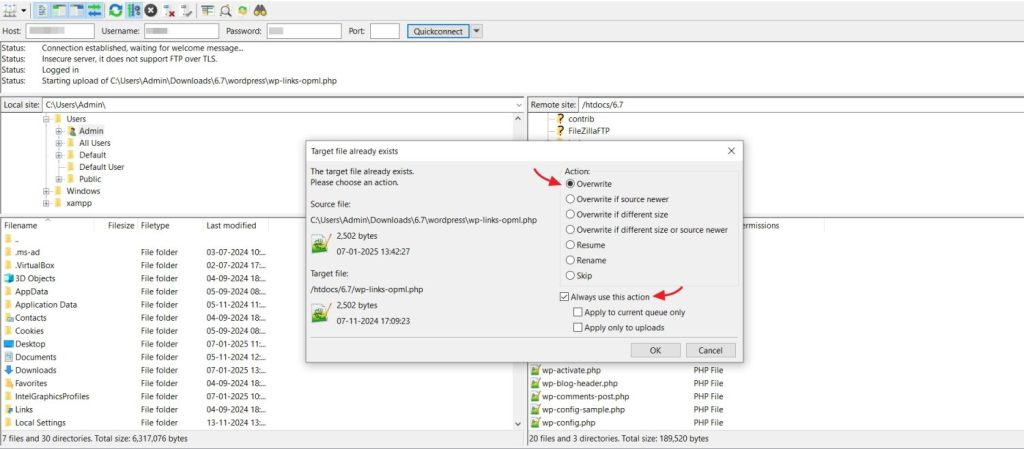
- Connect to your server via FTP and upload the rest of the files and folder. The chances are that the FTP client will ask you whether you want to rewrite the field and folders, select “Overwrite” and select the checkbox next to “Always use this action”.
After updating WordPress make sure that you update all your plugins and themes too. Now reload the website and see if your issue has been resolved.
MySQL Extension
If your web server is running PHP 5.6 or lower and you have a compatible WordPress version installed then you need to ensure that the MySQL extension is installed.
Note: Make sure you still have the phpinfo.php file on the server.
- Access yourwebsitedomain/phpinfo.php and scroll down and look for the section labeled mysqli or mysql section. Now check whether the Client API library version tab is present.
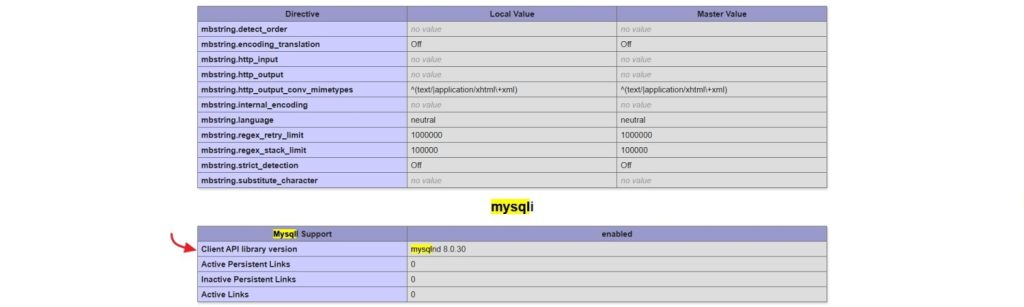
You can install this extension from the hosting control panel and for cPanel users you can do this from the “Software” section by choosing the “Select PHP Version”.
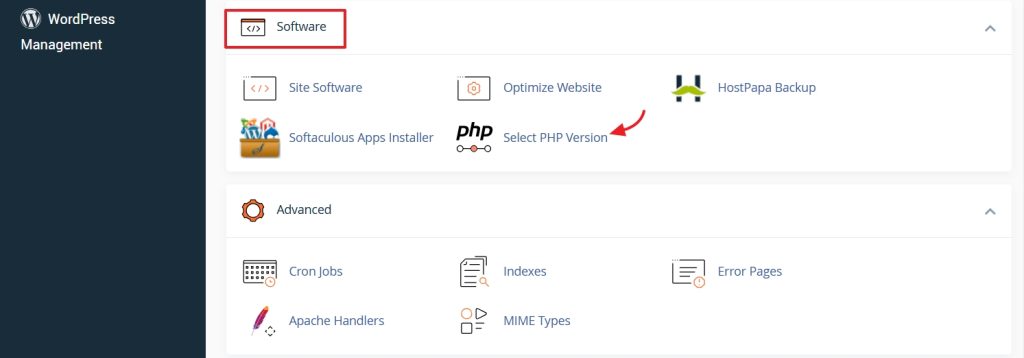
You can also request your web host to do it for you. Once installed try reloading your website to see if it loads up properly.
Properly configure the PHP extension
Once the extension is installed ensure that is configured correctly. To ensure that is properly configured, once again visit the php.info in your browser using the same URL. This time locate the “Loaded Configuration File” field.

- Now follow the file path and download the file to your system
- Once you have a backup of this file, delete this file from your server.
- Deleting this file will cause the hosting setup to create a new one with the default values. Now refresh the website to see if the issue has been resolved.
Once the issue has been resolved delete the phpinfo.php from your server. The best practice is to run the latest version of WordPress along with the recommended PHP version for better performance and security.
Wrapping Up
As troublesome as it seems, as long as you maintain the compatibility between the PHP version and WordPress, you can resolve this issue promptly.